Your Systeme.io list, right now, is probably one big bag.
People who came in through your free guide, others through your webinar, a few customers, some browsers who signed up two years ago... and every one of them gets exactly the same emails.
The result: people who already bought get your sales page (awkward), beginners get your advanced advice, and the advanced ones tune out.
Tags fix that. And they are far less technical than they look.
In this guide I show you how to create them, how to name them so you never get lost, the five ways to add them without lifting a finger, and the mistakes that break everything (including one I made myself, which I will tell you about).
What is a Systeme.io tag, and what is it really for?
A tag is a keyword attached to a contact. The contact never sees it: it is information for you.
One contact can carry as many tags as you like. Julie can be lm-sleep-guide, quiz-stress-profile-burnt-out and customer-workshop all at once.
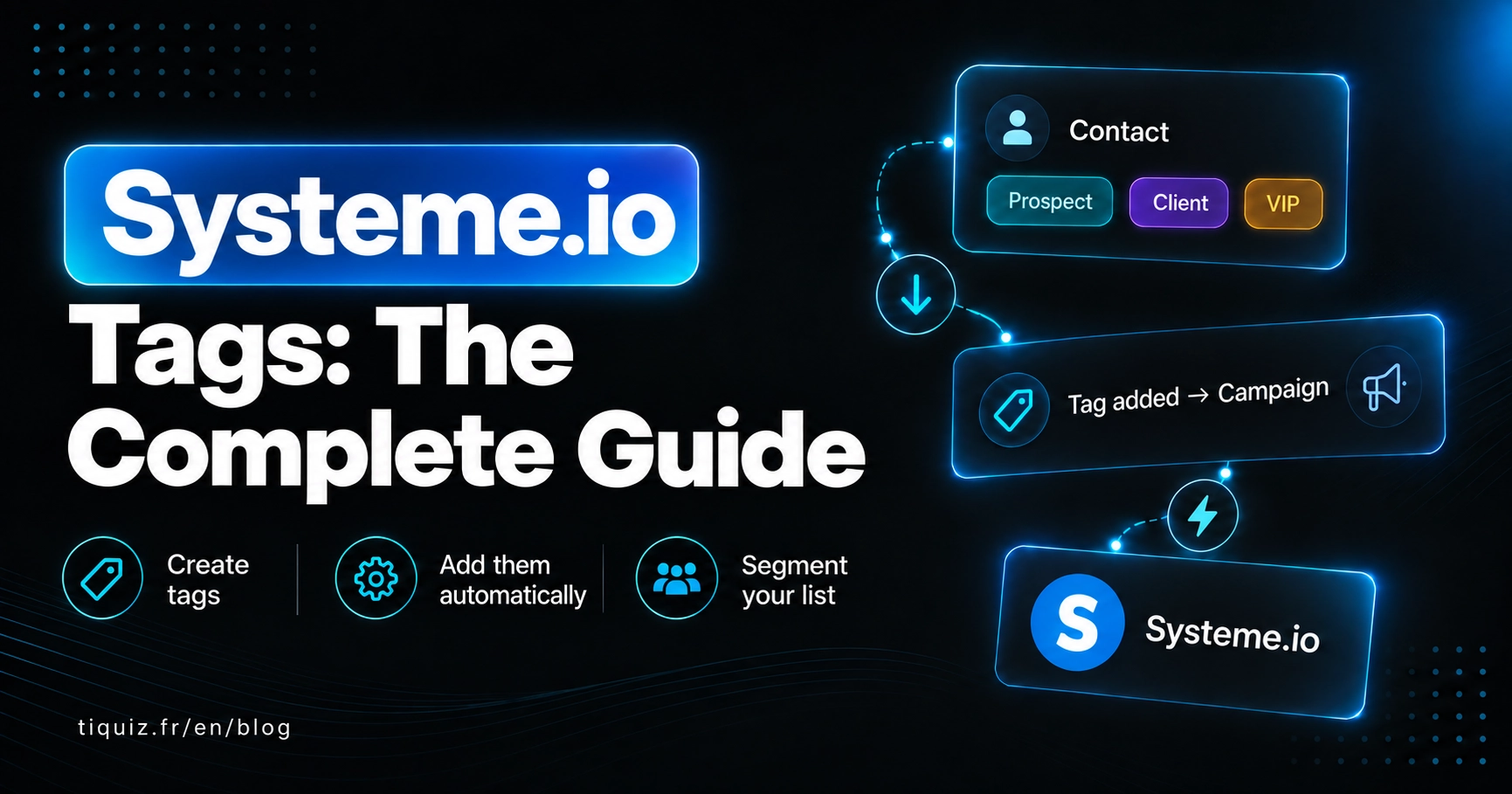
In practice, a Systeme.io tag does three things:
- It tells you who is who. Where the person came from, what they downloaded, what they bought, what is on their mind.
- It lets you write to part of your list. When you send a newsletter, you choose which tags to include and which to exclude.
- It fires an automation. "When tag X is added, subscribe the contact to this campaign": that is the engine of your whole funnel.
Without tags, you write to everybody. With tags, you write to someone.
How to create a tag in Systeme.io, step by step
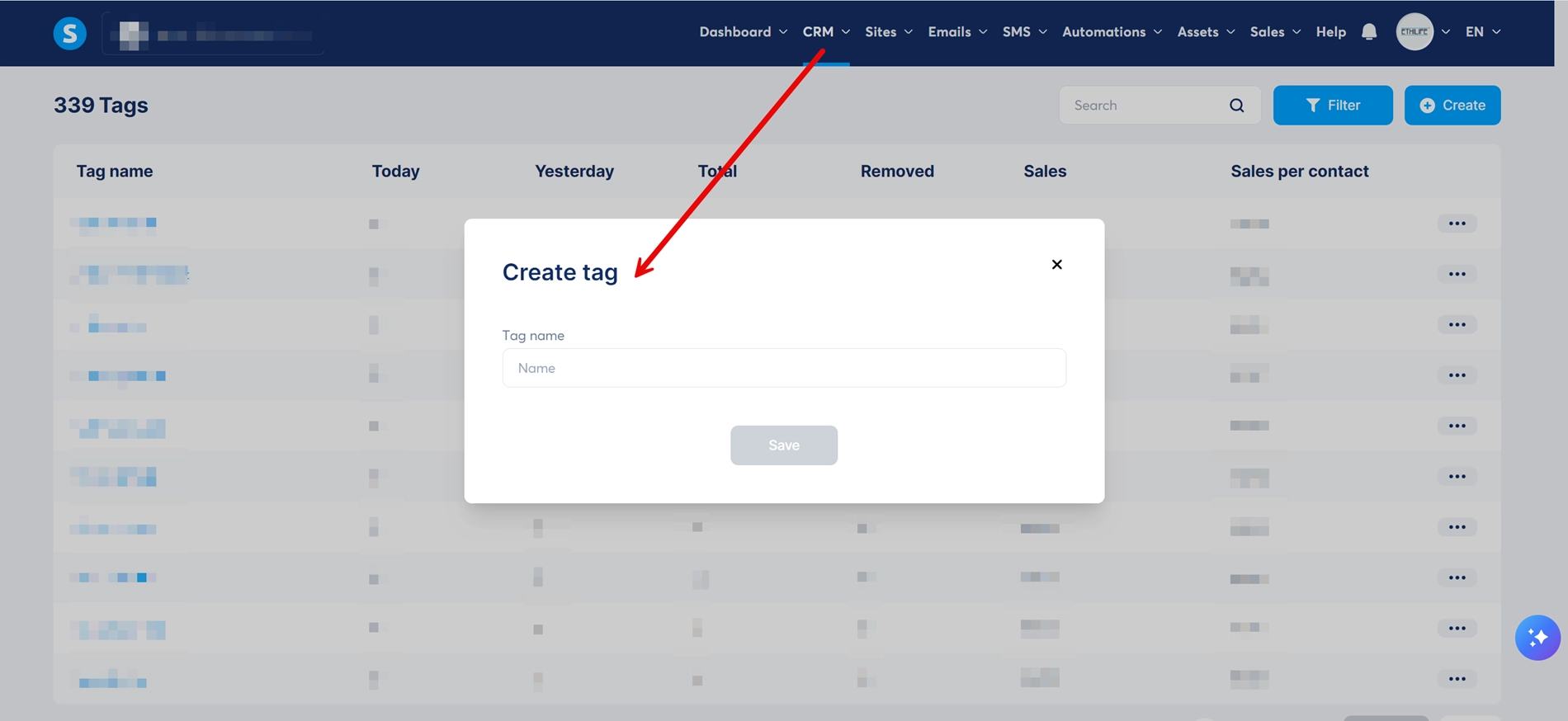
- In the Contacts menu, open the Tags tab.
- Click Create.
- Give your tag a name (how to name it well comes next), then save.
That is it. The tag exists, but it is on nobody.
And that is where a lot of people stop: they create beautiful tags... that never get added automatically. A tag that depends on you to be applied by hand is a tag that will not be applied.
The 5 ways to add a Systeme.io tag automatically
1. On opt-in from a capture page
This is the most common case. Under Automations, then Rules, you create a rule:
- Trigger: Funnel step form subscribed, on the funnel step in question
- Action: Add tag
Everyone who opts in through that page gets the tag. One capture page, one tag: that is the baseline.
2. On purchase
Same principle with the New sale trigger. You tag customer-product-name, and in the same rule you can remove the prospect tag, so your customer stops receiving the sales sequence for something they already own.
3. On a click inside an email
Systeme.io can fire a rule when a contact clicks a specific link in an email (Email link clicked). You send an email saying "Do you prefer A or B?" with two links, and each click adds its own tag. That is segmentation without a form, and your readers love getting to choose.
4. Based on the answers to a Systeme.io survey
The Survey element in the page editor lets you attach a tag to each answer of a multiple-choice question. The person answers, leaves their email at the end, and walks away tagged with their answers.
Two limits worth knowing: you cannot tag a free-text answer, and the survey calculates neither a profile nor a score. It adds tags answer by answer, and that is all.
5. Based on a quiz result
This is the sharpest version: the tag does not depend on one isolated answer, but on the profile reached at the end, calculated across every answer. More on that below, because this is where segmentation starts to really help you sell.
How to name your Systeme.io tags so you never get lost
On my own Systeme.io account, opened in 2020, I eventually counted 333 tags. Including ADS and ads: two tags for the same thing. An automation waiting for one never sees the other go by.
The fix is a naming convention, chosen once and honoured always:
- all lowercase, no accents, no spaces, hyphens between words;
- one prefix per family, so your tags sort themselves alphabetically;
- widest to narrowest: family, then subject, then detail.
| Family | Prefix | Examples | What it tells you |
|---|---|---|---|
| Source | lm-, quiz-, webinar- | lm-sleep-guide, quiz-stress | Where the person came from |
| Profile or interest | profile-, interest- | profile-burnt-out, interest-group-coaching | What is on their mind |
| Purchase | customer- | customer-workshop, customer-coaching | What they already bought |
| Behaviour | click-, opened- | click-september-offer | What they did inside your emails |
| Status | status- | status-inactive-6-months | Where they stand with you |
With that rule, one glance at your Systeme.io tag list tells you the story of your business. Without it, you are staring at Ebook sleep (new) and ebook_sleep_v2 wondering which one is live.
What you can do with your Systeme.io tags once they are on
Send a newsletter to part of your list
When you send, Systeme.io lets you include and exclude tags. You write to everyone tagged profile-burnt-out who is not yet customer-workshop. An email sent to 300 people it actually concerns sells far better than the same email sent to 3,000 who do not feel addressed.
Fire a different campaign depending on the tag
An automation rule along the lines of "tag added, then subscribe to campaign" is enough. Each profile gets its own sequence. That is exactly what I break down in the guide to Systeme.io automation rules.
Build a workflow that makes decisions
Systeme.io workflows go further than rules: a visual canvas, delays, and decisions that split your contacts into two paths based on their tags or their fields. "Do they have the customer-workshop tag? Yes: offer them what comes next. No: remind them the offer exists."
Clean up your list
Filter your contacts by tag, spot the ones who no longer open anything, and handle them separately. Your deliverability will thank you.
The Systeme.io tag mistakes that break your automations
The tag created but never applied. Check every tag: which rule adds it? If you cannot answer, it is useless.
Duplicates. ads and ADS, customer and customers. An automation set on the wrong one never fires, and nothing warns you.
Forgetting to remove a tag. Your customer bought, but still carries the prospect tag: she keeps getting "Last chance to join!". That is the mistake that costs the most in brand image.
Vague tags. lead, subscriber, new. In three months you will not know what they meant.
Loops. A rule that adds a tag that fires a rule that re-adds the tag... Systeme.io protects itself: per their help centre, one trigger cannot fire more than 20 times for the same contact. Past that, automations are disabled for that contact.
Systeme.io tags, in a handful of moves
- One tag per source, per profile, per purchase.
- One naming convention, written down somewhere, honoured always.
- Every tag has a rule that adds it, and, where needed, a rule that removes it.
- You write to tags, not to the whole list.
Tagging your Systeme.io contacts from their quiz answers
The native survey adds one tag per answer. That is useful, but an isolated answer does not say much: "I have no time" does not tell you whether the person is a beginner who is swamped, or an expert who is swamped.
A quiz calculates a profile across every answer. And it is that profile that deserves a tag, because it is what decides which email to send and which offer to make.
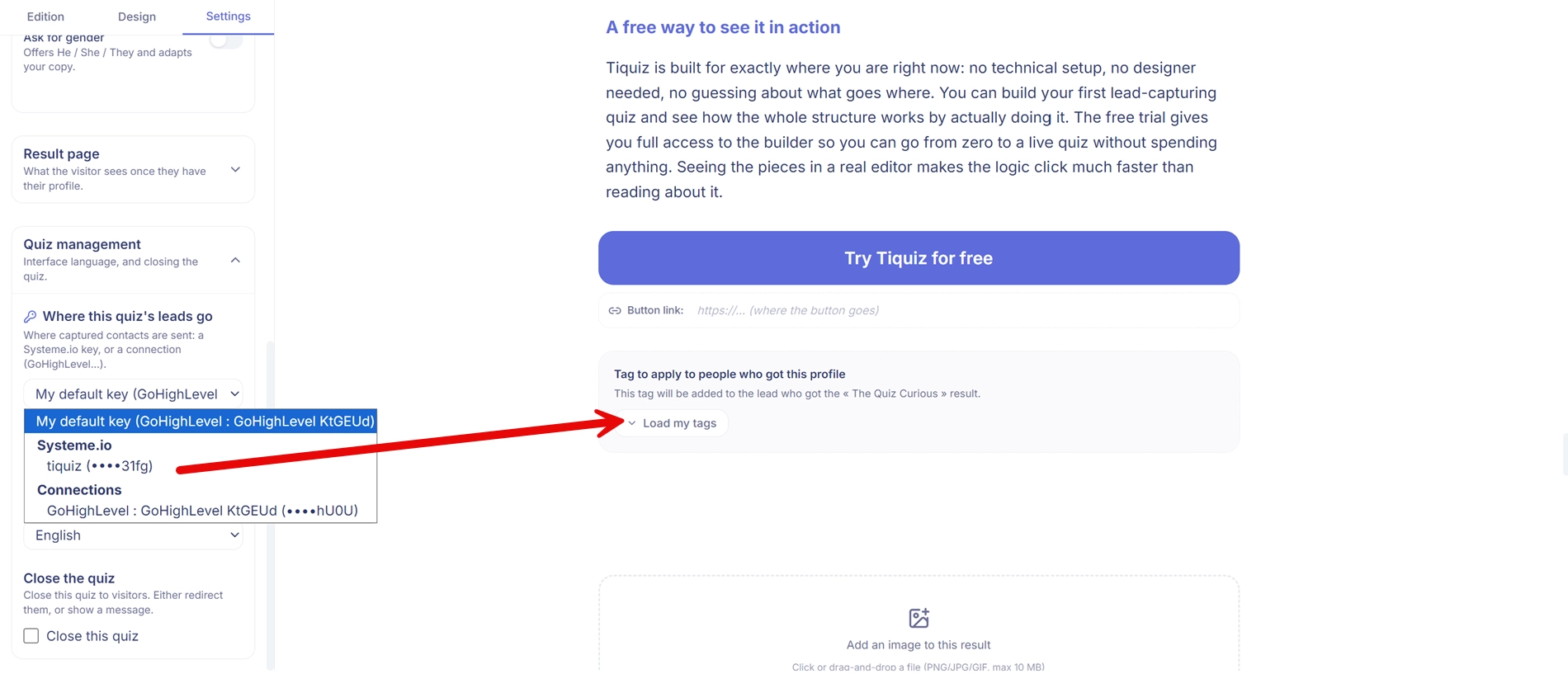
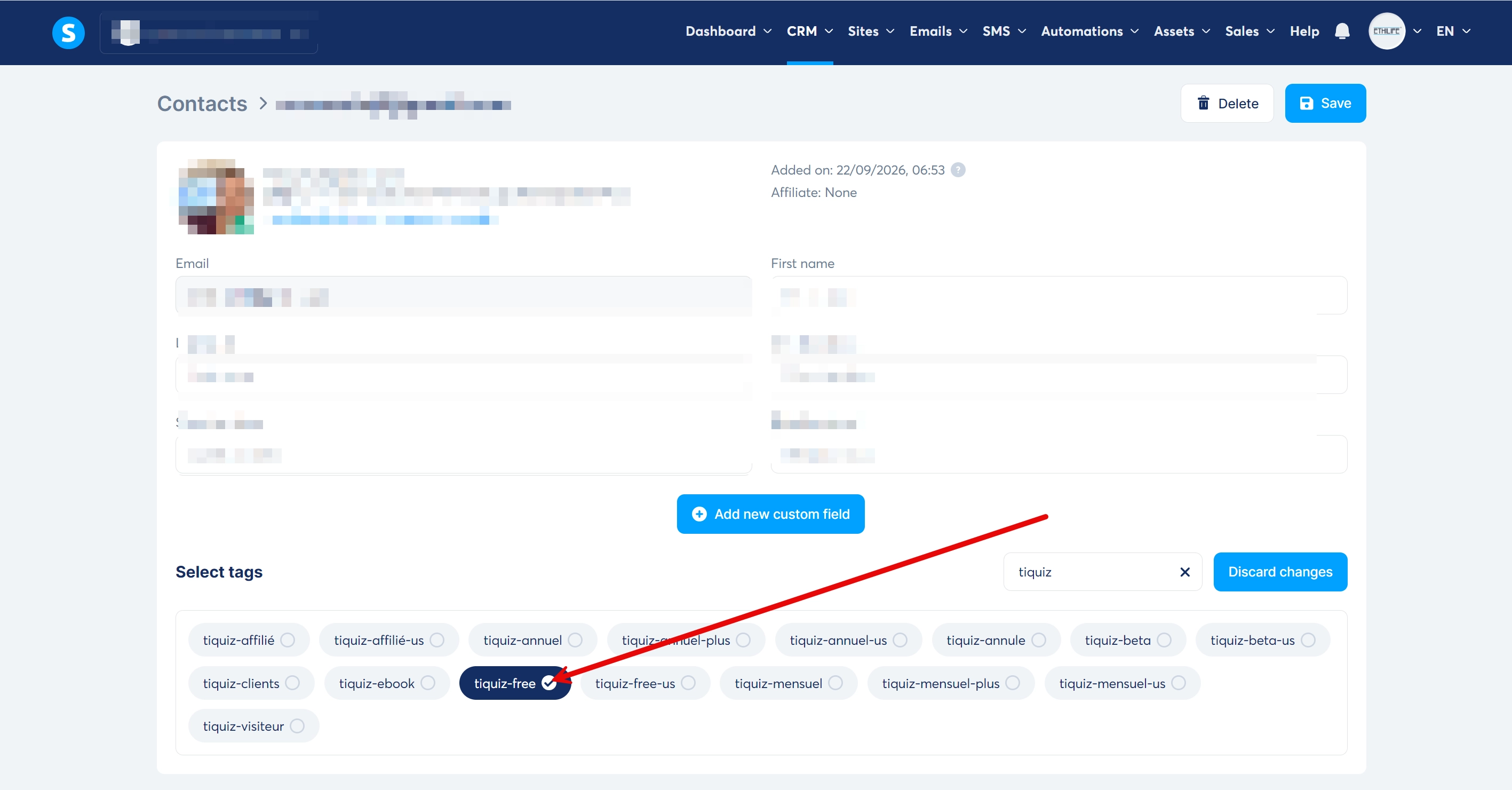
That is what Tiquiz does: you connect your Systeme.io account once, you choose the tag for each result profile, and for every participant Tiquiz creates the contact, creates the tag if it does not exist yet, applies it, and writes the profile title into the tiquiz_result field on the contact record. You can even apply several tags per profile.
No Zapier, no extra subscription, and it works on the free plan.
| Systeme.io survey | Tiquiz quiz | |
|---|---|---|
| Tag applied | One per answer chosen | One or several per result profile |
| Result shown to the person | No | Yes, one result page per profile |
| Profile or score calculated | No | Yes, profile or score, your choice |
| Tag created automatically if missing | No, it has to exist | Yes |
| Writing the questions | By hand | By AI, from your subject |
| Price | Included in Systeme.io | Included in the Tiquiz free plan |
And once your Systeme.io contacts are tagged?
A tag is an address. You still have to send something to it.
The logical next step is deciding what happens when the tag arrives: which campaign, which delay, which offer, and when to remove the tag. I have laid it all out in the Systeme.io automation rules to set up when a lead comes in.
FAQ · Systeme.io tags
How many tags can you create in Systeme.io?
The Systeme.io pricing page announces no tag limit, free plan included. The real limit is your own ability to find your way around: hence a naming convention from the start.
How do you email a single tag in Systeme.io?
When you create your newsletter, choose the tags to include (and the ones to exclude). Only contacts carrying those tags will receive it.
Can a contact have several tags?
Yes, as many as needed. That is the whole point: source, profile and purchase stack up on the same record.
What is the difference between a tag and a custom field?
A tag says yes or no (the person has this profile, or not) and is used to trigger and to filter. A custom field stores a value (text, a number) that you can display inside an email. Tiquiz uses both: a tag for the profile, and the tiquiz_result field for its title.
How do you tag automatically from form answers?
With the Systeme.io Survey element, you attach a tag to each answer of a multiple-choice question. To tag from a profile calculated across several answers, you need a connected quiz tool, such as Tiquiz.
How do you delete or rename a Systeme.io tag?
Under Contacts, Tags tab. Before deleting, check that no automation rule and no workflow relies on it: they would stop working without warning.
Sources
- Systeme.io, "How automation rules work" (20 triggers per contact limit) : https://help.systeme.io/article/140-automation-rules
- Systeme.io, "How to create workflows in systeme.io" : https://help.systeme.io/article/1542-workflow-feature
- Systeme.io, "How to add a survey to your page" (tags per answer, free-text answers cannot be tagged) : https://help.systeme.io/article/1398-how-to-use-the-survey-element
- Systeme.io, pricing page: https://systeme.io/pricing